
VSCode connects to a remote server via SSH
Table of Contents
Preface Link to Preface
VSCode is an excellent code editor, and using it to connect to a server is also a great choice. This article will introduce how to connect to a remote server using VSCode and enable password-free login by setting up mutual trust between nodes.
Main text Link to Main text
Install VSCode Plugin Link to Install VSCode Plugin
First, you must have VSCodeinstalled on your computer.
Then, you can download the Remote-SSH plugin from the extensions panel.
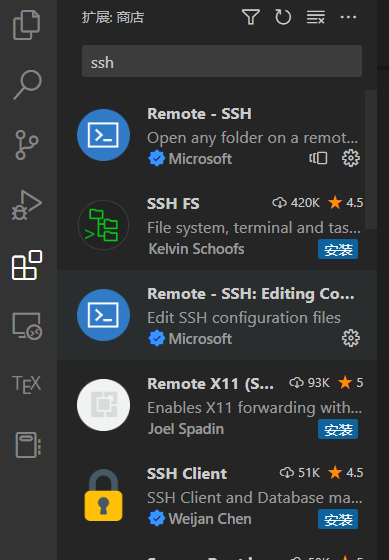
After installation, a remote connection icon will appear on the left sidebar.
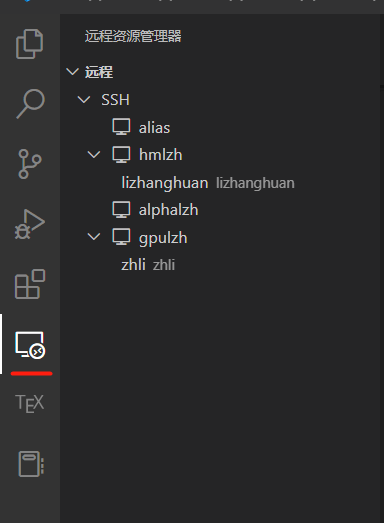

Click on the SSH settings icon to open the config file and configure it as follows:
1234Host Supercomputer_cluster
HostName 159.226.208.68
User yihaoxu
Port 61288
- The name after
Hostcan be anything you choose. - The value after
HostNameshould be your server’s IP address. - The value after
Usershould be your username. - The value after
Portshould be your server’s port number.
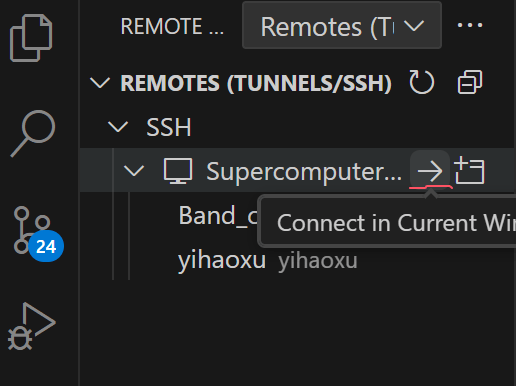
Click the connection arrow to start connecting, then enter your account password to log in to the server.
Set up password-free login Link to Set up password-free login
- Run the
ssh-keygen -t rsacommand on both your local computer and the server, pressing Enter to accept all defaults.
In your local computer’s C:\Users\YourUsername\.ssh directory, two files will be generated: id_rsa (private key) and id_rsa.pub (public key).
- Copy the contents of
id_rsa.puband paste them into the~/.ssh/authorized_keysfile on the server.
After this setup, you can access the server using VSCode without entering a password.
VSCode connects to a remote server via SSH
© DeliXi | CC BY-SA 4.0